
Which One Actually Fits Your Workflow?
Short Intro
There are more productivity apps competing for your attention than ever, and most reviews just list features without telling you which one will actually change how your day goes. The truth is the “best” productivity app isn’t a single winner — it depends on whether your bottleneck is capturing tasks, organizing complex projects, or protecting time on your calendar. Here’s an honest breakdown of the tools worth considering in 2026, and how to pick between them without wasting a week testing all of them.
Quick Answer
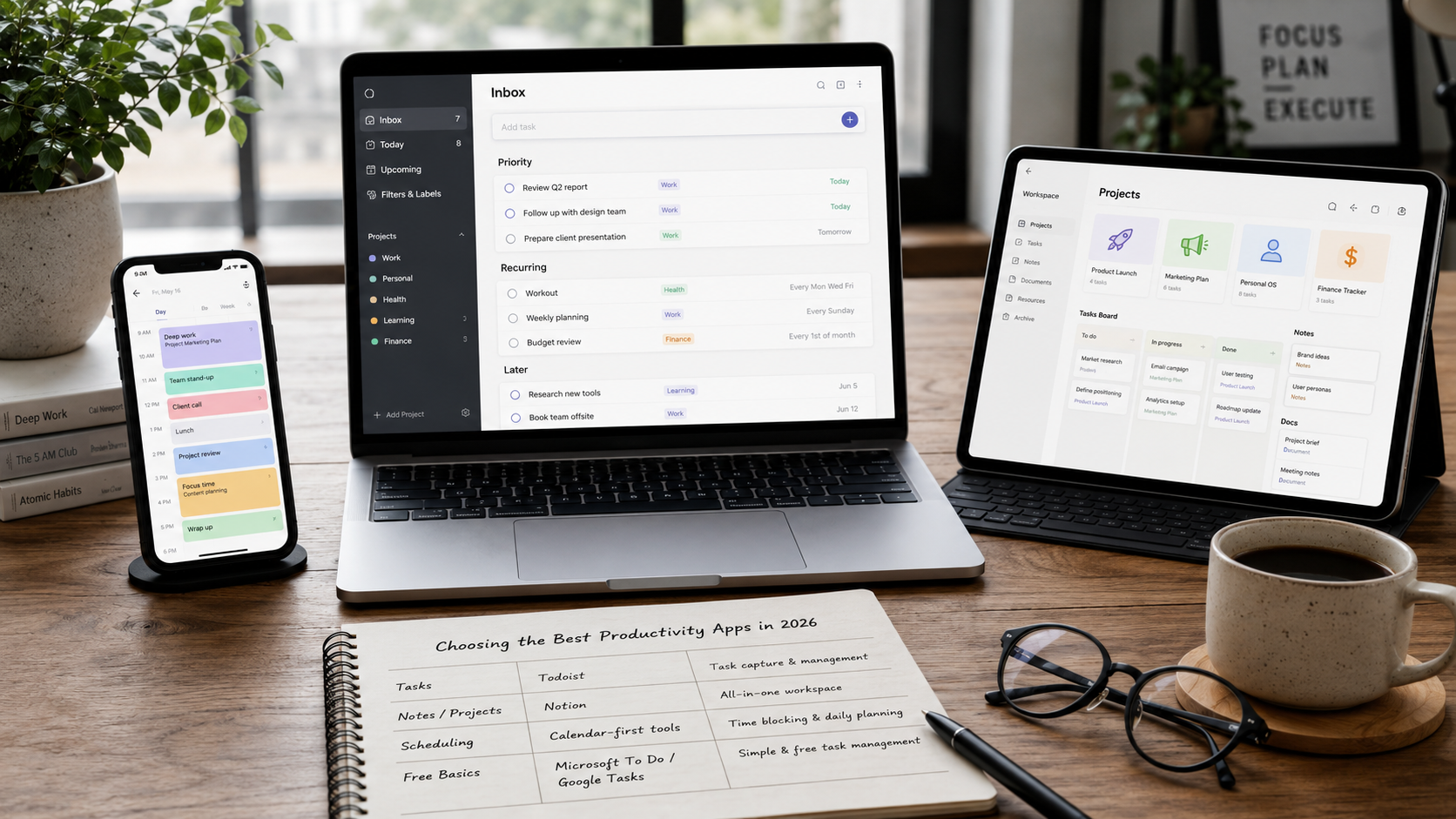
For fast, simple task capture: Todoist. For an all-in-one workspace covering notes, docs, and projects: Notion. For turning tasks into an actual schedule: a calendar-blocking app like Sunsama, Akiflow, or Motion. Most productive people don’t run one app — they run a small stack: one tool for tasks, one for notes or knowledge, and sometimes one for scheduling. Adding more apps than that usually recreates the exact problem you were trying to solve.
Main Tools Compared
Todoist — Best for Fast, Simple Task Management
Todoist has been around since 2007 and remains the benchmark for quickly capturing and tracking tasks. Its natural-language input lets you type something like “email Sarah every Monday at 9am” and it automatically becomes a recurring, dated task. It’s fast, reliable offline, and its free plan is usable for most individuals, capping at five active projects, with the Pro plan unlocking unlimited projects, reminders, and filters for a low monthly price.
Best for: People who want a task manager that gets out of the way. Limitation: It’s a task list, not a scheduling tool — there’s no built-in calendar view or Pomodoro timer, so pairing it with a calendar app is common.
Notion — Best for an All-in-One Workspace
Notion combines notes, databases, wikis, kanban boards, and task lists into a single, highly flexible workspace. It’s the strongest option if your work involves organizing complex projects, documentation, or collaborative planning rather than just tracking daily tasks. The tradeoff is a real learning curve — new users often spend meaningful time building their system before they’re actually being productive in it.
Best for: People who want one hub for tasks, notes, and project documentation. Limitation: Task capture is slower than a dedicated app like Todoist, since adding a task means navigating into a database rather than a single quick-entry field.
Calendar-First Tools (Sunsama, Akiflow, Motion) — Best for Turning Tasks Into a Schedule
A newer category of apps sits between task management and time blocking. These tools pull tasks in from wherever you already keep them — Todoist, Notion, Asana, Gmail — and force you to drag each one onto your actual calendar. The underlying idea: a task that isn’t scheduled usually doesn’t happen. Some, like Motion, use AI to auto-schedule your day based on deadlines and available time; others, like Sunsama, add a guided daily planning ritual and an end-of-day shutdown routine.
Best for: People whose real problem isn’t remembering tasks — it’s finding time for them. Limitation: These tools sit at a premium price point compared to a basic task manager, and the AI auto-scheduling still benefits from a light manual review.
Microsoft To Do / Google Tasks — Best Free, No-Frills Options
If you’re inside the Microsoft or Google ecosystem already, these free tools integrate tightly with your existing calendar and email without adding another subscription. They lack the automation and flexibility of paid tools, but for simple personal task tracking, they’re genuinely capable and cost nothing.
Side-by-Side Snapshot
| App | Best For | Learning Curve | Free Plan |
|---|---|---|---|
| Todoist | Fast personal task capture | Low | Yes (5 projects) |
| Notion | All-in-one workspace, docs + tasks | High | Yes (generous) |
| Sunsama / Akiflow | Turning tasks into a real schedule | Medium | Usually no |
| Motion | AI auto-scheduling | Medium | No |
| Microsoft To Do / Google Tasks | Simple, free, ecosystem-native | Very Low | Yes (fully free) |
Useful Example: Building a Minimal Effective Stack
You don’t need twelve apps. A tested, minimal stack covers four functions:
- Tasks — Todoist (or Microsoft To Do if you want free)
- Notes / knowledge — Notion or Obsidian
- Scheduling — your existing calendar, or a calendar-blocking app if tasks keep slipping
- Focus — a simple timer app for Pomodoro-style work sessions
That’s it. Everything else is optional, and each additional tool needs to justify its place by solving a problem the first four don’t.
Mistakes to Avoid
- Chasing the “perfect” app instead of using one consistently. The best app is the one you actually open every day — a simpler tool used daily beats a powerful one abandoned after a week.
- Trying to make one flexible app do everything. Notion can technically replace your task manager, calendar, and notes app — but doing all of them adequately isn’t better than doing each one well with a purpose-built tool.
- Ignoring your actual bottleneck. If tasks keep slipping through the cracks, adding a fancier note-taking app won’t fix that — you need a scheduling tool. Diagnose the real problem before adding software.
- Overbuilding your system before you’ve used it. Especially in Notion, it’s easy to spend hours designing the perfect database before completing a single real task. Start simple; add structure only once you feel real friction.
- Letting installed apps outnumber used apps. Research on remote workers found the average knowledge worker has around 8 productivity apps installed but regularly uses only 2 or 3 — the gap between installed and used is the real productivity problem.
Action Plan
- Identify your actual bottleneck: Is it capturing tasks, organizing complex projects, or finding time to do the work?
- Pick one tool per function — task capture, notes, scheduling — rather than one tool trying to do all three.
- Set a two-week trial period for any new app before deciding if it sticks.
- Migrate your existing tasks over gradually, not all at once, to avoid losing momentum during the switch.
- Turn off notifications you don’t need — a productivity app that constantly interrupts you is working against its own purpose.
- Review your stack every few months. If you’re not opening an app regularly, drop it rather than keep paying for or maintaining it.
Final Thoughts
The productivity app market in 2026 has more options than ever, and most of them are genuinely good at what they do — the mistake is expecting one app to solve every kind of friction in your day. Start with the simplest tool that solves your actual bottleneck, give it two weeks of real use, and only add a second tool once you’ve identified a specific gap it needs to fill. A small, consistently used stack will outperform a large, half-used one every time.
FAQs
Which productivity app is fastest to learn? Todoist and Microsoft To Do have the lowest learning curves — you can be productively using either within a few minutes. Notion and full calendar-blocking tools like Motion take longer to set up but offer more long-term flexibility once configured.
Do I need a paid productivity app, or is free enough? For most individuals, free tiers of Todoist, Notion, or Microsoft To Do are genuinely sufficient. Paid plans mainly add value once you need more projects, team collaboration, or AI-assisted scheduling — worth paying for once you’ve outgrown the free tier, not before.
Should I use Notion and Todoist together? Many people do — Notion for planning, documentation, and knowledge, Todoist for fast daily task capture and execution. If you go this route, be intentional about which tool “owns” your actual to-do list, so tasks don’t end up scattered across both.